|
Timetable Assistant 'Virtual Tour'
Pete Self -
peteself@nesterenkosoftware.com
|

|
Back to Timetable Assistant Tour - 'Files' tab
When performing Simulated Loads, the user can extract the 'Simulated Class Load' values into the ClassLoad.csv file.
Instructions to create the ClassLoad.csv file:
After performing a 'Simulated Load', Click on the 'Class Load' button. While viewing the various Classes and
their Section Size etc., click on File, Print. On the Print dialog screen, select 'Save As...'.
On the Save As dialog screen, select CSV (Comma Separated Values), 'OK'. Be sure the file is saved to the same folder
as this application. Filename: ClassLoad.csv Click 'Yes' to overwrite file.
After saving, 'Cancel' out of the Print dialog screen.
The ClassLoad.csv file contains the CourseCode/Section, the number of students loaded into the Course/Section and the number of requests.
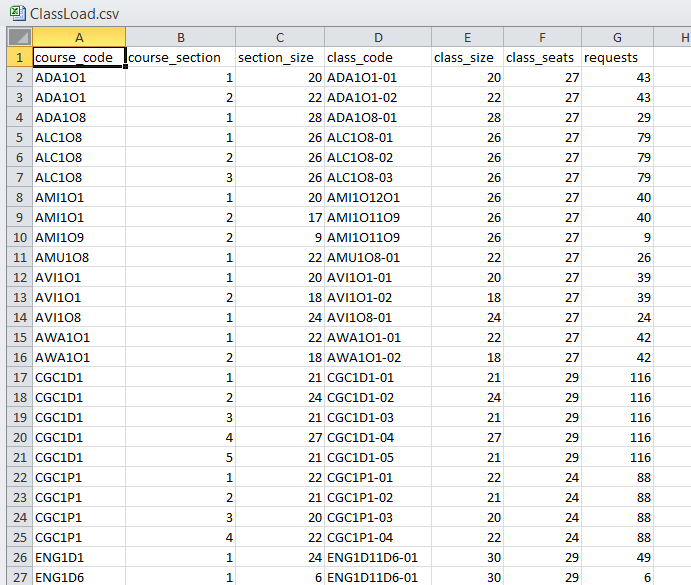
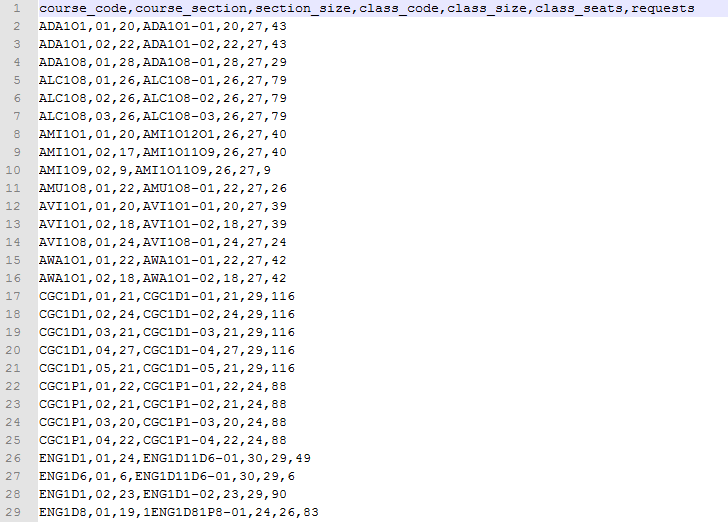
Merely for curiousity, data from a sample ClassLoad.csv file is shown below.
The user never has need to view this file.
But viewing the data may provide an understanding of how the various reports have been generated.
The first is when opened in Excel.
The second is when opened in a text editor - 'CSV' stands for Comma Separated Values - In this view you can see the specific data.